

Description
Download Windows Media Player HTML5 Extension – Secure Chrome Add‑on for MP4 & H.264 Playback
Overview
The Windows Media Player HTML5 Extension is a lightweight Chrome add‑on developed by Microsoft Open Technologies to bridge the gap between modern HTML5 video standards and legacy Windows Media Player formats. When a webpage requests “Windows Media Player is required to display some elements,” the extension silently intercepts the request, rewrites the video tag, and streams the content using the familiar Windows Media Player engine embedded within Chrome. This eliminates the need for pop‑ups, external players, or tedious browser updates. Designed primarily for MP4 files and H.264‑encoded streams, the extension ensures that users can enjoy podcasts, tutorials, and streaming media without interruption. Its single‑purpose architecture focuses on reliability and low resource consumption, making it ideal for older machines or bandwidth‑constrained environments. While it does not boast extensive customization options, its straightforward approach delivers a seamless viewing experience across a wide range of websites that still rely on legacy media tags. Whether you’re a casual viewer tired of “unsupported format” warnings or a developer needing a quick compatibility shim for testing, the Windows Media Player HTML5 Extension offers a free, secure, and instantly deployable solution for Chrome users on Windows.
Key Features
- Instant MP4 playback – supports the widely used MP4 container without additional codecs.
- Native H.264 handling – scans HTML5 pages, replaces unsupported video tags, and streams H.264 content smoothly.
- Zero‑pop‑up experience – eliminates intrusive dialogs that normally request external players.
- Low system footprint – consumes minimal RAM and CPU, preserving performance for other tasks.
- Simple drag‑and‑drop installation – add the extension to Chrome with a single mouse movement.
- Cross‑browser compatibility shim – works with Windows Media Player content even on browsers that have dropped native support.
- Automatic updates – receives background updates from the Chrome Web Store, keeping security patches current.
- Secure sandboxed environment – runs within Chrome’s extension sandbox, protecting your system from malicious media files.
These features combine to create a tool that is both practical for everyday users and valuable for developers who need to verify that legacy media assets still render correctly. The extension does not attempt to replace full‑featured media players; instead, it focuses on delivering a stable playback pipeline for the most common video formats encountered on the modern web. By handling the heavy lifting behind the scenes, it frees users from the confusion of “click here to download a player” prompts, turning what could be a frustrating experience into a smooth, uninterrupted viewing session.
Installation & Usage Instructions
Step‑by‑Step Installation
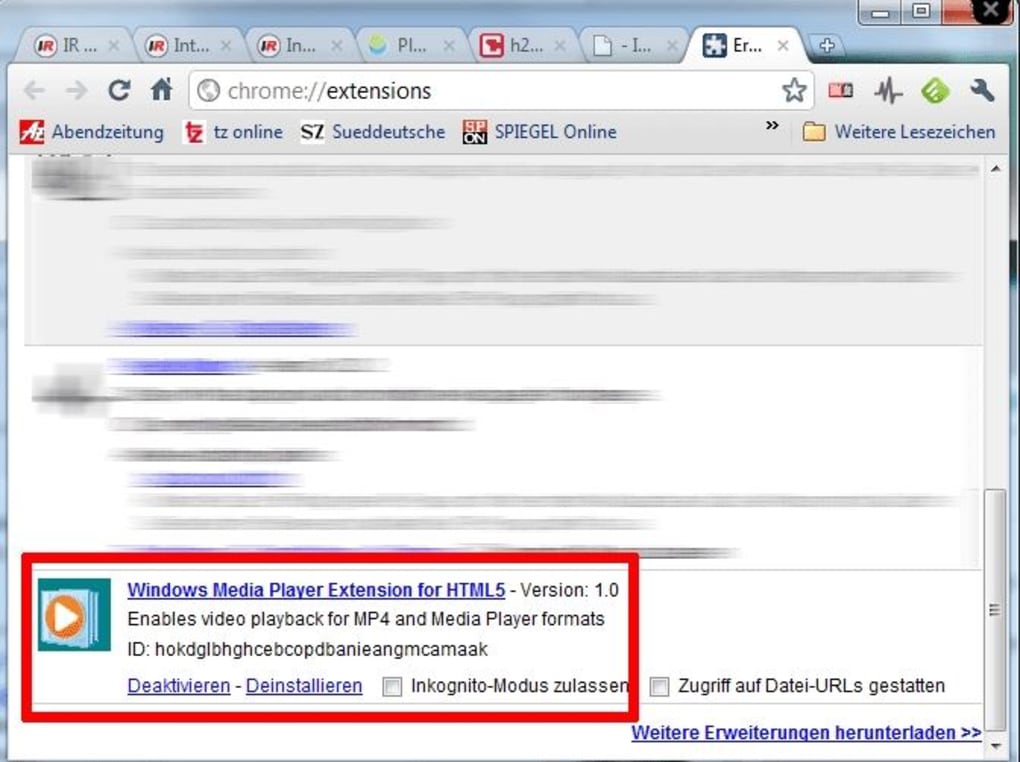
Installing the Windows Media Player HTML5 Extension is intentionally simple. First, navigate to the Chrome Web Store page dedicated to the extension. Click the “Add to Chrome” button; Chrome will prompt you to confirm the addition. By confirming, the extension automatically downloads and installs itself without requiring any manual configuration. For users who prefer a direct file approach, the extension also supports a drag‑and‑drop method: download the .crx file from the official Microsoft Open Technologies repository, open Chrome’s extensions page (chrome://extensions/), enable “Developer mode,” and drag the file onto the page. Chrome will prompt you to confirm the installation, after which the extension icon appears in the toolbar.
Using the Extension
Once installed, the extension works automatically. When you land on a page that embeds a video tag requiring Windows Media Player, the extension detects the request, swaps the tag with a compatible HTML5 element, and begins playback instantly. No additional clicks or settings adjustments are needed. If you wish to verify that the extension is active, click the puzzle‑piece icon in Chrome’s toolbar and locate “Windows Media Player HTML5 Extension” in the list; you can pin it for quick access. The extension also offers a small status window that appears briefly, confirming that it has replaced the video tag and is streaming the content. Should you encounter a video that does not play, a small “Help” button appears in the status window, linking you to a troubleshooting page that covers common issues such as unsupported codecs or network restrictions.
Updating the extension is handled by Chrome automatically. When a new version is released, Chrome will download it in the background and apply the update the next time you restart the browser. This ensures that you always have the latest security patches and compatibility improvements without manual effort. For power users, the extension’s options page (accessible via right‑clicking the toolbar icon and selecting “Options”) allows you to enable or disable automatic tag replacement on specific domains, giving you granular control over where the extension intervenes.
Compatibility and System Requirements
The Windows Media Player HTML5 Extension is built exclusively for Google Chrome on the Windows operating system. It leverages Chrome’s extension APIs and the underlying Windows Media Player libraries that come pre‑installed with Windows 7, 8, 8.1, and 10. While the extension can technically run on Chrome for macOS or Linux, the underlying Windows Media Player component is unavailable on those platforms, rendering the extension ineffective. Therefore, the official supported operating system is listed as:
Windows 7, 8, 8.1, 10, and later (64‑bit recommended)
Minimum hardware requirements are modest: a dual‑core processor, 2 GB of RAM, and at least 100 MB of free disk space for the extension files. Because the extension does not perform heavy transcoding, it imposes a negligible CPU load, making it suitable for older laptops and netbooks. Network bandwidth is the primary factor affecting playback quality; the extension streams video directly from the source site, so a stable broadband connection (minimum 5 Mbps for HD content) is recommended for optimal performance.
The extension supports the following video specifications:
- Container: MP4
- Codec: H.264 (Baseline, Main, High profiles)
- Resolution: Up to 1080p (higher resolutions may be limited by the source file)
- Audio: AAC, MP3
If you run Chrome on a non‑Windows platform, you can still view most HTML5 videos natively, but you will miss the legacy Windows Media Player compatibility layer that this extension provides. For users on Windows, the extension seamlessly integrates with Chrome’s sandbox, ensuring that the playback engine operates securely without exposing the system to external vulnerabilities.
Pros and Cons
Advantages
- Free and open‑source, no hidden fees or subscriptions.
- Instantly resolves “Windows Media Player required” prompts.
- Minimal CPU and memory usage, ideal for low‑end PCs.
- Automatic background updates keep security current.
- Secure sandboxed operation within Chrome protects against malicious media.
Drawbacks
- Lacks advanced customization (e.g., playback speed, subtitles).
- Only works on Windows; no support for macOS or Linux.
- Does not handle formats outside MP4/H.264 (e.g., WebM, Ogg).
- Relies on the presence of Windows Media Player libraries; may fail on very stripped‑down Windows installations.
- Minimal user interface; power users may desire more control over tag replacement rules.
The Windows Media Player HTML5 Extension delivers exactly what its name promises—a simple, secure way to play legacy MP4 and H.264 videos in Chrome without annoying pop‑ups. Its low system footprint and automatic updates make it a dependable choice for Windows users who still encounter older media tags on the web. While it could benefit from richer playback controls and broader OS support, its core functionality works flawlessly and solves a niche problem that many modern browsers overlook.
Frequently Asked Questions
Is the Windows Media Player HTML5 Extension completely free?
Yes, the extension is offered at no cost. It can be downloaded directly from the Chrome Web Store without any hidden fees or subscription requirements.
Which browsers are supported?
The extension is built exclusively for Google Chrome on Windows. It will not function in other browsers such as Firefox, Edge, or Safari.
Can I use the extension on macOS or Linux?
No. The extension relies on the Windows Media Player libraries that are only present on Windows operating systems.
What video formats does the extension support?
It supports MP4 containers with H.264 video codec and AAC or MP3 audio streams. Other formats like WebM or Ogg are not handled by this extension.
Will the extension affect my browser’s performance?
The extension is designed to be lightweight, using minimal CPU and RAM. Most users notice no perceptible slowdown while browsing or watching videos.
Conclusion & Call to Action
In a web landscape where modern browsers have largely abandoned native support for legacy Windows Media Player tags, the Windows Media Player HTML5 Extension fills a crucial gap for Windows users. Its free, secure, and easy‑to‑install nature ensures that you can watch MP4 and H.264 videos without the frustration of pop‑up prompts or the need for external players. While it lacks advanced playback customization and is limited to the Windows platform, its core functionality is reliable and unobtrusive. If you regularly encounter “Windows Media Player required” warnings on educational sites, corporate intranets, or older streaming platforms, this extension is the straightforward solution you’ve been waiting for.
Download the Windows Media Player HTML5 Extension now and experience uninterrupted video playback today. Join thousands of users who have already streamlined their browsing experience with this simple yet powerful tool.
Guides & Tutorials for Windows Media Player HTML5 Extension
How to install Windows Media Player HTML5 Extension
- Click the Preview / Download button above.
- Once redirected, accept the terms and click Install.
- Wait for the Windows Media Player HTML5 Extension download to finish on your device.
How to use Windows Media Player HTML5 Extension
This software is primarily used for its core features described above. Open the app after installation to explore its capabilities.
User Reviews for Windows Media Player HTML5 Extension 0
No reviews found





